Your bank statement, turned into Making Tax Digital records.
Download a CSV from your bank and upload it. AI reads it into transactions, whatever your bank's layout, and an AI assistant helps you categorise anything unclear. You approve every category, and nothing connects to your bank.
No bank login
You approve every category
Free to use
How it works
Every bank lays out its CSV export differently: different columns, different date formats, separate money in and money out columns, balance rows at the bottom. FileThat uses AI to read whichever layout yours is and pull out each transaction's date, amount, payee and description.
Each transaction then gets a suggested category. Your own rules come first, so once you have told FileThat that a payee is always fuel, it stays fuel. Anything without a rule is matched against common payee names, and you can change any suggestion.
For a transaction you are not sure about, open the AI assistant. It asks a question if it needs to, then suggests a category from your own business's list. Nothing changes until you press Apply.
See it in 75 seconds
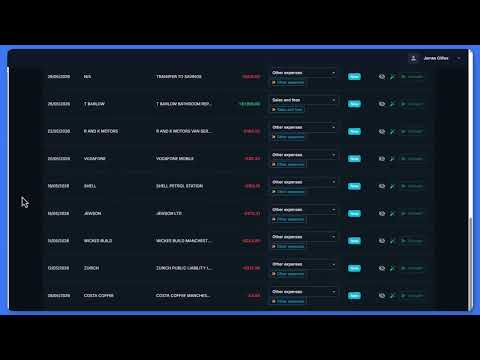
Bank Statements & CSV Import
Upload a bank statement, check the suggested categories and correct one.
What it does
Reads any bank's CSV
Header rows, balance rows and split money in and money out columns are handled for you. A statement uploaded twice does not create duplicates.
Your rules first
Set a rule once, such as a payee that is always fuel, and it is applied to every statement you upload after that.
An assistant for the awkward ones
Ask the AI assistant about a single transaction. It only ever suggests a category your kind of business actually has.
Records when you say so
Transactions become digital records only when you convert them, one at a time or all at once, after a breakdown by category.
What counts as a digital record: HMRC digital record keeping.
From statement to records
Export a CSV
Most UK banks let you download your transactions as a CSV file from online banking.
Upload it
AI reads the file into transactions. The file itself is never saved.
Check the categories
Accept the suggestions, change any that are wrong, and ask the assistant about the rest.
Convert to records
Your transactions become the digital records your quarterly update or VAT return is worked out from.
Your data
No bank connection
FileThat never asks for your bank login and never connects to your account. You choose what to upload, a statement at a time.
Account numbers are not kept
Only the date, amount, payee, description and reference of each transaction are kept. Account numbers, sort codes and balances are removed when the statement is read, and never stored.
The file is not saved
Your statement is read and then discarded. What stays is the list of transactions, which you can review and delete.
The assistant sees one transaction
When you ask for help, the AI is sent that transaction's description, payee and amount, and your conversation. Not its date, and not the rest of your statement.
Good to know
CSV files only
Statements are uploaded as CSV. PDF statements cannot be read yet, so download the CSV version from your online banking instead.
Free to use
Uploading statements, categorising and keeping digital records are free. You only pay when you file a quarterly update or VAT return.
150 AI messages a month
Each message to the AI assistant counts, up to 150 a month, and the allowance resets on the 1st. Reading your statements does not count towards it.
Long statements
A very long statement may need splitting into parts. FileThat tells you if it does, and duplicates across the parts are skipped.
Filing VAT from your records? See MTD VAT returns.
Straight answers
Does FileThat connect to my bank account?
No. There is no Open Banking connection and FileThat never asks for your bank login. You download a CSV of your transactions from your online banking and upload it, so you decide exactly which statements FileThat sees.
Does the AI categorise everything automatically?
No, and that is deliberate. The AI reads your statement into transactions. Suggested categories come from your own rules and common payee names. For anything unclear you ask the AI assistant, and it suggests a category that you then apply yourself.
What happens to my account number and sort code?
They are not kept. When your statement is read, only the date, amount, payee, description and reference of each transaction are taken. Account numbers, sort codes and balances are dropped, and the file itself is never saved.
Can I upload a PDF bank statement?
Not yet. FileThat reads CSV files, which almost every UK bank offers as a download from online banking, usually under statements or export. The CSV holds the same transactions as the PDF, in a form that can be read reliably.
Which categories does it use?
Your business's own. A sole trader gets HMRC's self-employment expense categories, a landlord gets property income and expense categories, and the assistant will only ever suggest one that exists for your type of business. The category decides where each figure lands on your filing.
Is there a limit on the AI?
Yes, a fair use limit of 150 AI assistant messages a month, which resets on the 1st. Reading your bank statements does not count towards it. There is no paid tier and no upgrade: the limit is the same for everyone.
Turn your next statement into records
Free to sign up, free to keep records. 4 free credits for your first filings, no card needed.
Get started free